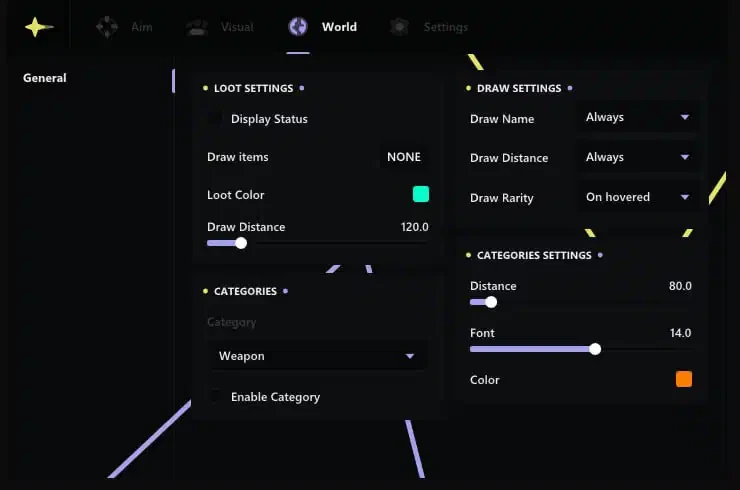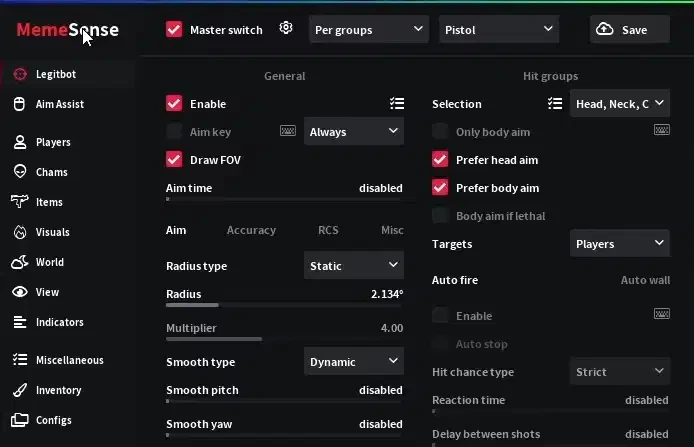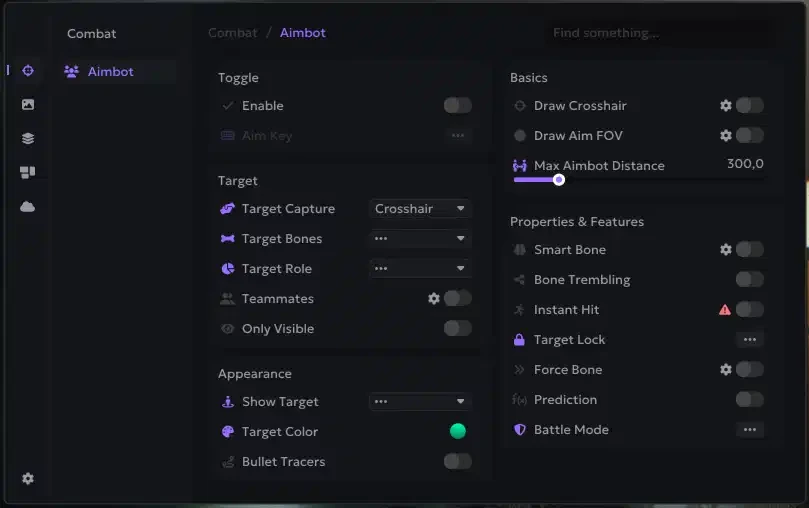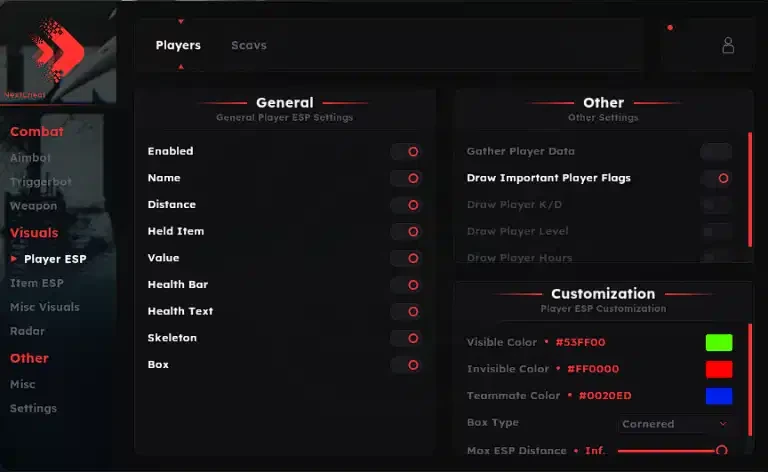
Fortnite Howlux External Guide
Welcome to the official setup guide for Fortnite Howlux External. If you haven't purchased a license yet, you can do so here: Buy Now
Important Safety Note
If you use an external spoofer, always run the cheat first and then the spoofer. Running the spoofer before the cheat will result in an immediate ban.
Technical Overview
- External Advantage: Being an external product, Howlux offers superior protection against detection.
- No Built-in Spoofer: This product does not include a spoofer. If you are already HWID banned, you will need an external spoofer. You can purchase one here: Buy Spoofer
Preparation & Required Files
Download and install these components before attempting to launch the software:
- Disable Antivirus: Use DControl to completely turn off Windows Defender.
- Download Loader: Download here
- Visual C++ Runtimes: Download here
- DirectX Runtime: Download here
System & BIOS Requirements
1. BIOS Mode: UEFI Only
Legacy BIOS mode is not supported.
- Check: Type
msinfo32in Windows search. Look for BIOS Mode. It must say UEFI. - Fix: If it says Legacy, you must convert your drive using
MBR2GPTor reinstall Windows with a GPT partition scheme.
2. Secure Boot: Disabled
- Check: In
msinfo32, look for Secure Boot State. It must be Off or Unsupported. - Fix: Enter your BIOS -> Boot/Security tab -> Secure Boot -> Set to Disabled or Clear Secure Boot Keys.
3. Virtualization: Enabled
Virtualization is required to protect the cheat from the game's anti-cheat.
- Check: In
msinfo32, look for Hyper-V - Virtualization Enabled in Firmware. It must say Yes. - AMD CPUs: Enable SVM Mode in BIOS.
- Intel CPUs: Enable Intel Virtualization Technology (VT-x) in BIOS.
Launching the Cheat
- Confirm Requirements: Ensure Secure Boot is OFF, Virtualization is ON, and BIOS is UEFI.
- Folder Setup: Place the loader into a new, empty folder on your desktop.
- Run as Admin: Right-click the launcher and select Run as Administrator.
- Activation: Enter your license key.
- Auto-Reboot: The loader will prepare your system and automatically reboot your PC.
- Note: If you do not see our logo during the reboot, please contact support.
- Start Game: Once the PC has rebooted and the setup is finished, launch Fortnite.
Troubleshooting
BIOS Mode is Legacy?
You can try the Windows MBR2GPT tool:
- Open PowerShell as Admin.
- Type:
mbr2gpt /disk:0 /validate /allowFullOS - If validated, type:
mbr2gpt /disk:0 /convert /allowFullOS - Change your BIOS settings from CSM/Legacy to UEFI.
Virtualization Error on Launch?
If the loader asks to enable virtualization even though it is on:
- Ensure Hyper-V is enabled in "Windows Features".
- If the prompt persists, click Cancel in the loader and proceed to enter your key; sometimes the manual check is required.
Secure Boot won't turn off?
On some motherboards (like ASUS or MSI), you must change the "OS Type" from "Windows UEFI" to "Other OS" or "Custom" to effectively disable Secure Boot.
Need more help?
Visit our blog for more tutorials at aimcorecheat.mysellauth.com/blog or open a support ticket.