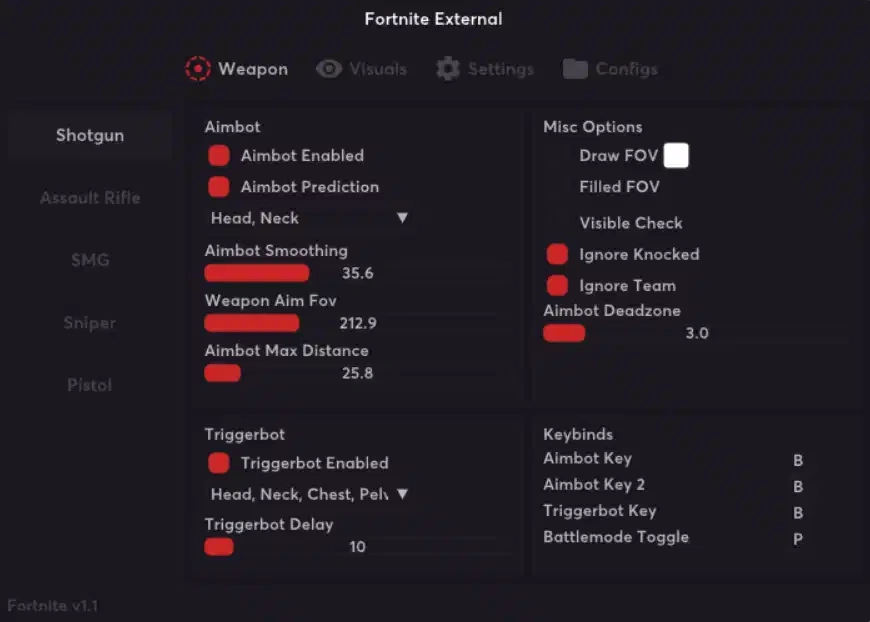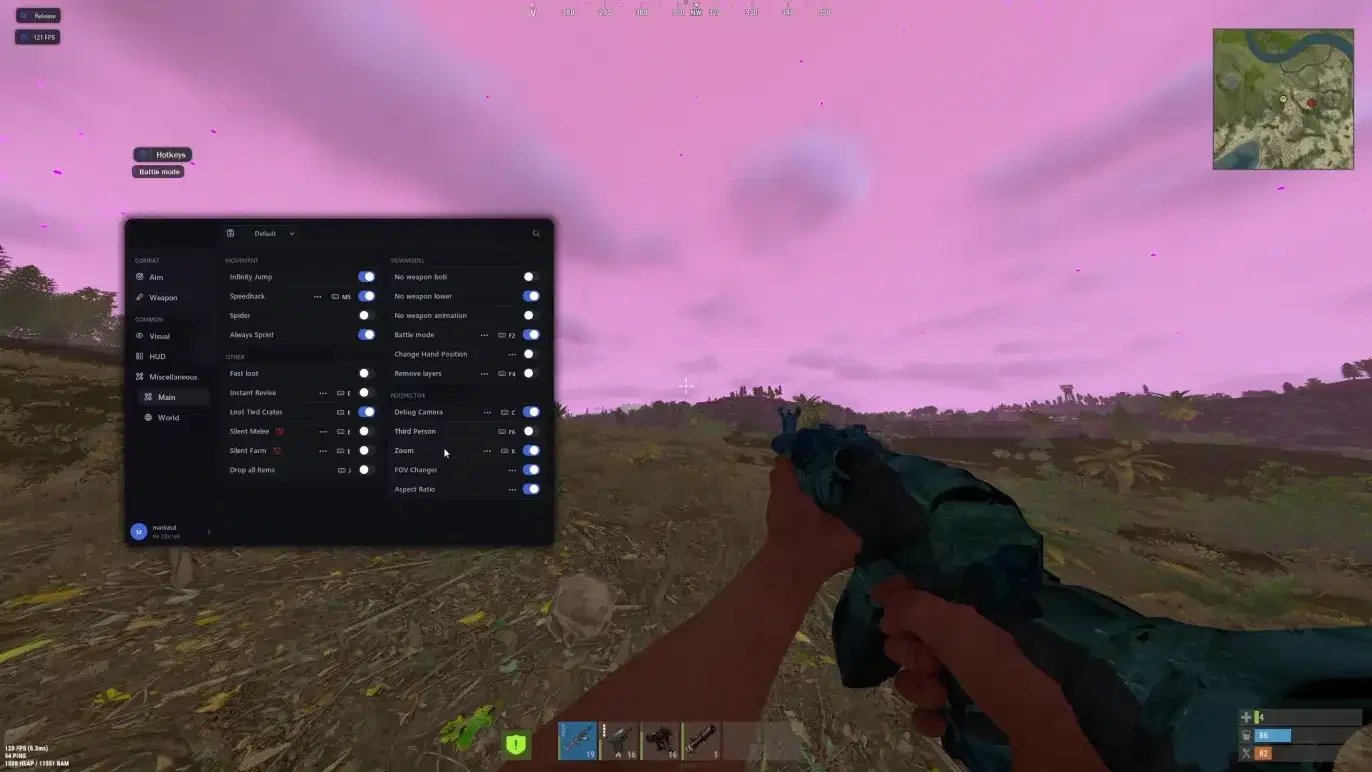
Wardogs Serenity External Guide
Welcome to the official setup guide for Wardogs Serenity External. If you need to purchase a license, you can do so here: Buy Now
Important Safety Note If you choose to use an additional external spoofer alongside this cheat, always run the cheat first and then the spoofer. Running the spoofer before the cheat will result in a ban.
Key Features
- External Undetection: Operates outside the game process for maximum security and reduced detection risks.
- Built-in Spoofer: Includes an integrated hardware spoofer to easily bypass bans without purchasing additional software.
System Requirements & Required Files
System Requirements
- CPU: Must support the AES instruction set (Intel & AMD)
- RAM: 16GB minimum
- OS: Windows 10 & 11 (Versions 1909 to 25H2)
- BIOS: Virtualization (SVM / VT-X) enabled | Secure Boot disabled
- Hyper-V: Disabled on AMD CPUs | Enabled on Intel CPUs
- Firmware & Partition (Intel Only): UEFI mode required with GPT disk format
Required Files Download and install these components before starting:
Discord Overlay Setup (Wardogs Only)
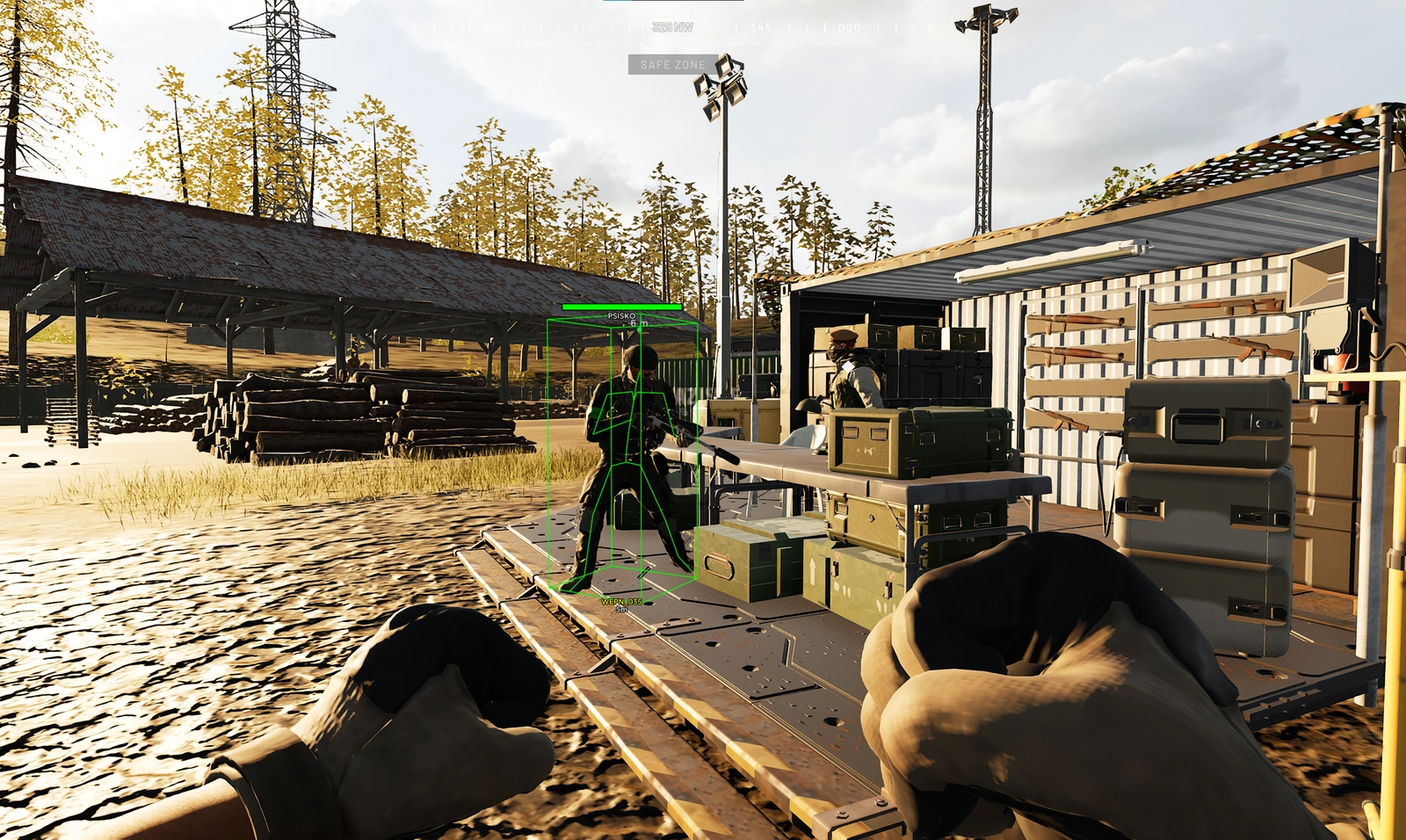
Wardogs uses the Discord Overlay to display visuals. Note: Discord does not support Fullscreen mode; run your game in Windowed/Borderless mode.
- Open Discord and go to User Settings → Game Overlay.
- Turn ON Enable in-game overlay.
- Ensure Legacy Overlay is disabled.
- Go to User Settings → Advanced and enable Hardware Acceleration.
- Tip: If Discord displays "No suitable overlay" under your current activity section, toggle the overlay off and back on again.
Pre-Launch Checklist
- Disable all real-time antivirus and security software.
- Launch the loader as Administrator.
- Paste your license key into the loader.
- Press Inject and wait for the loader to close automatically.
- Launch Wardogs.
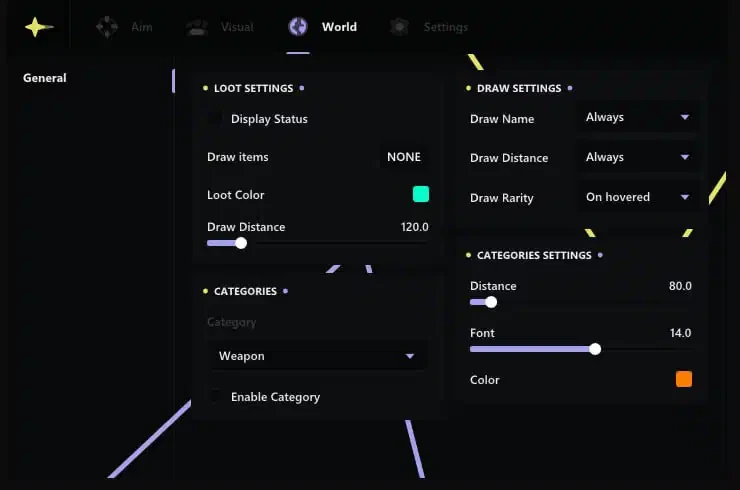
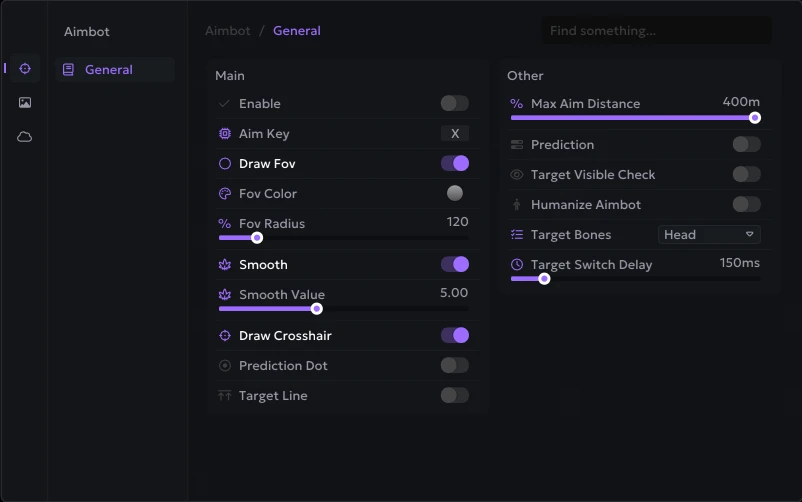
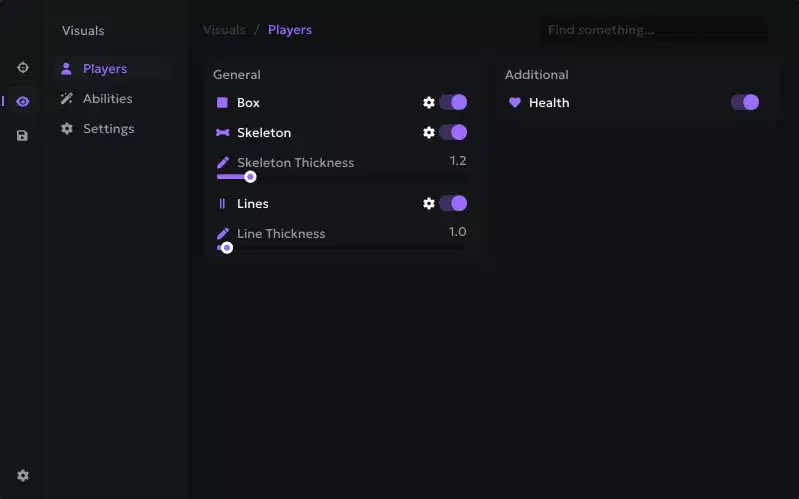
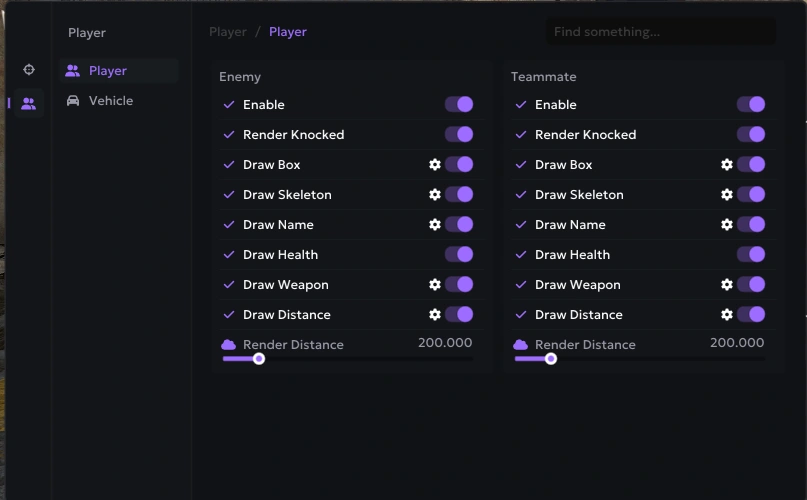
- Access the cheat menu in-game using the INSERT key.
Troubleshooting & Error Fixes
Loader Stuck on Loading Screen
- Create a new, empty folder on your Desktop (e.g.,
Desktop\Loader). - Move the downloaded loader file into this empty folder alone.
- Right-click the loader and select Run as administrator.
Display & Overlay Errors
- GeForce Error ("Please launch SteelSeries moment overlay"): Toggle your GeForce overlay off and on again.
- SteelSeries Error ("Please launch SteelSeries Sonar overlay"): Press your Sonar keybind before launching the loader.
- Menu Flickering / Black Screens: Open SteelSeries → Settings → MOMENTS → Capture and sound → Turn off "ALLOW MOMENTS TO CAPTURE WHILE GAMING".
- No Menu or Immediate Loader Closure: Download and install the latest Visual C++ Redistributable x64.
Technical & Injection Errors
- Error 0x296: Reinject the cheat.
- Error 0x298(0) / Network Error: Connect to a VPN or switch VPN locations.
- VMX is Not Supported / Virtualization Errors: Ensure Virtual Machine Platform is off. Open CMD as Admin and run:
DOS
Reboot your PC afterwards.bcdedit /set hypervisorlaunchtype off - AES Instruction Set Error: Your CPU lacks hardware support for AES; a CPU upgrade is required.
- Anticheat Conflicts: Completely uninstall persistent anti-cheats like Riot Vanguard or FACEIT.
- HWID / RAID Disk Error: Open CMD and check disk integrity using
wmic diskdrive get Caption, SerialNumber. If the command fails, disable RAID in BIOS or reinstall Windows.
Need more help? Check out our blog ataimcorecheats.com/blogor open a support ticket.