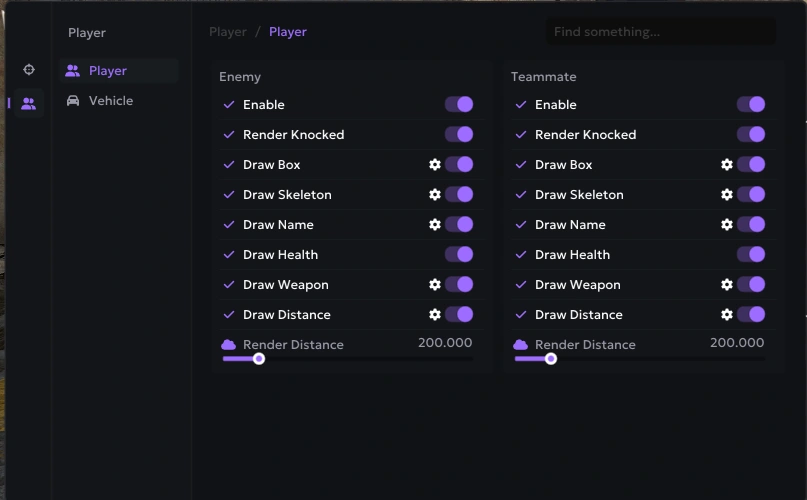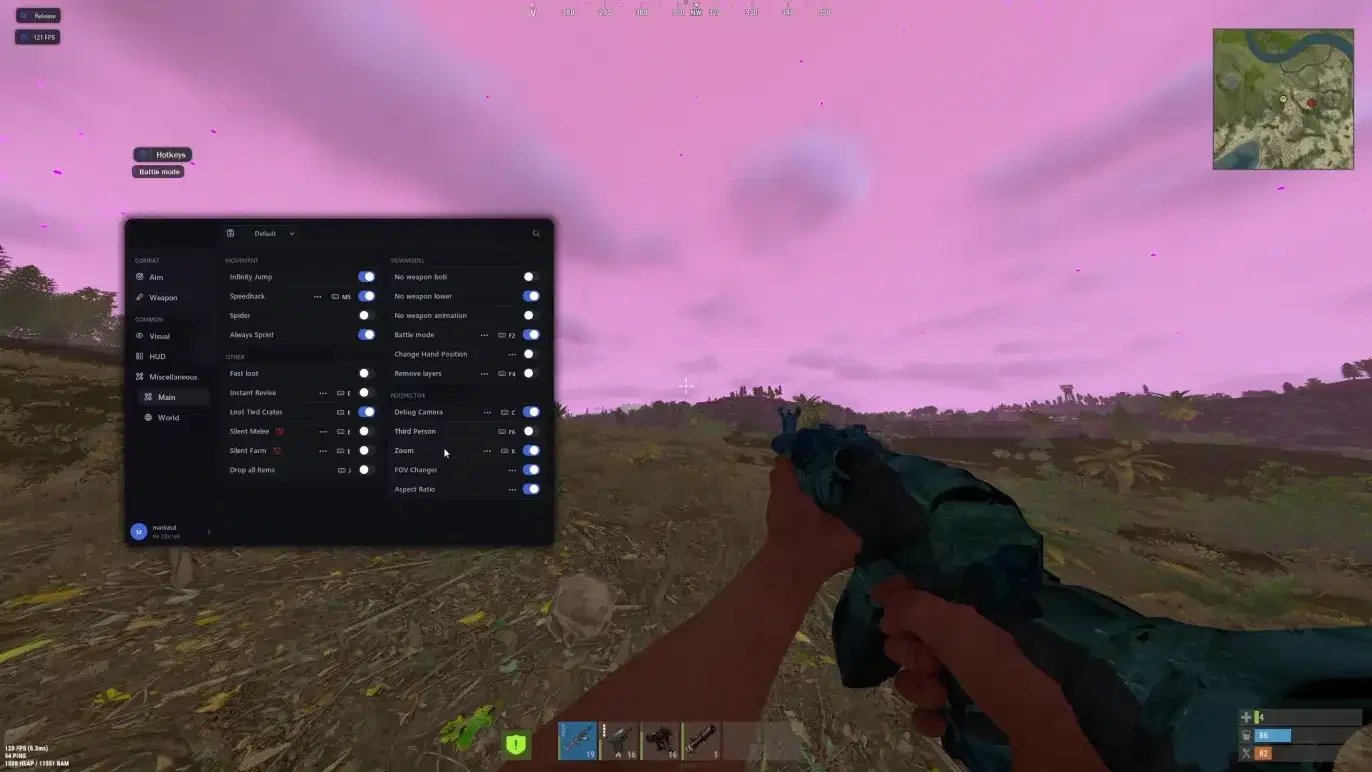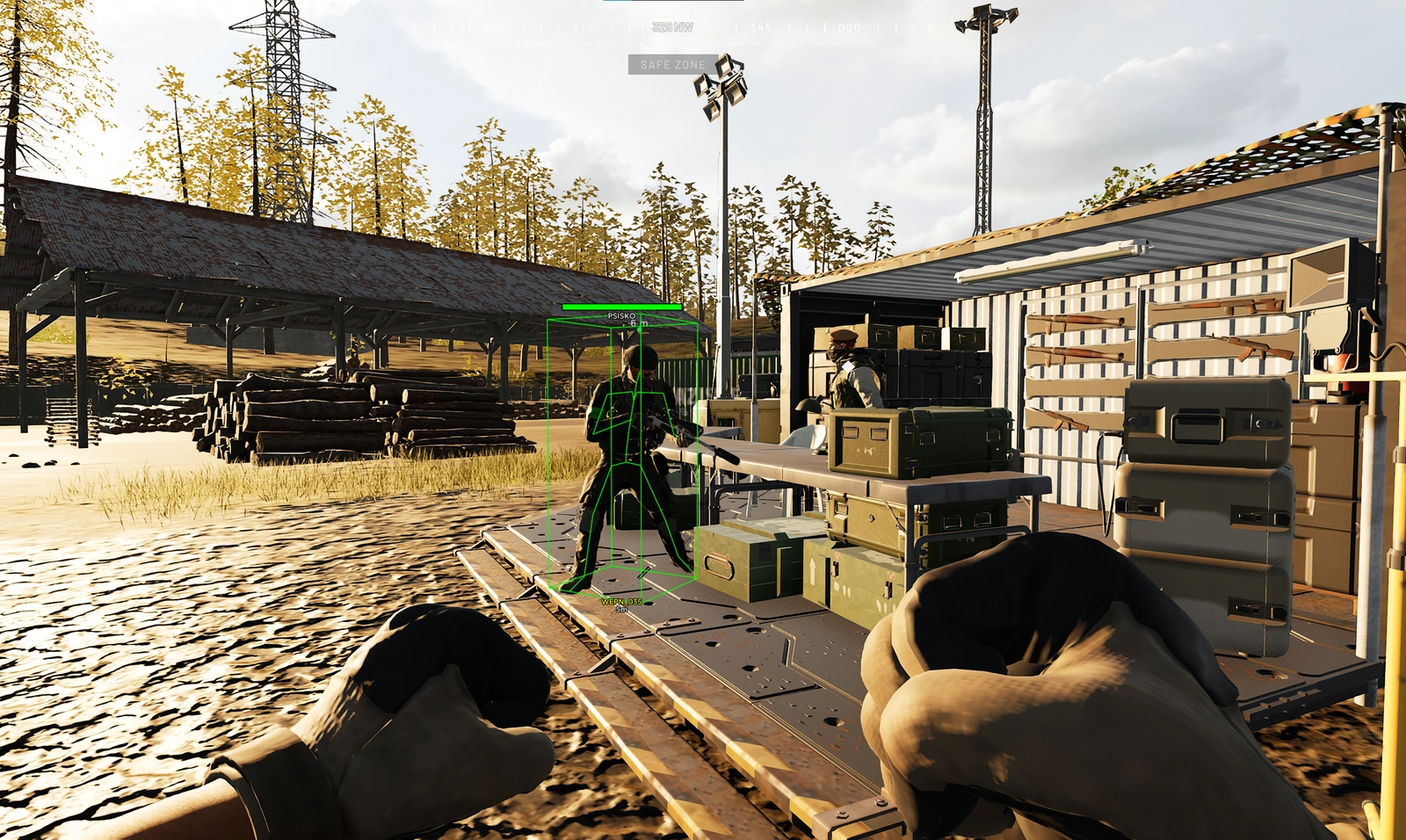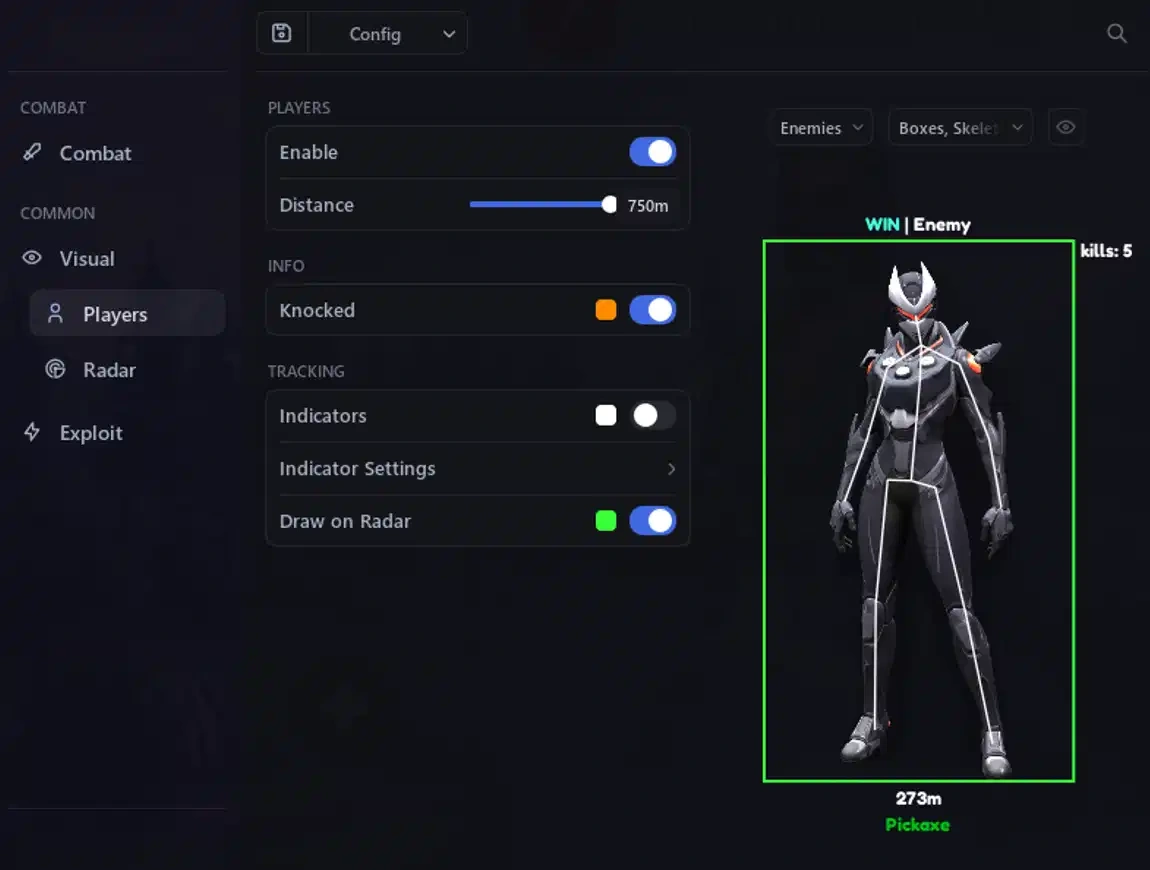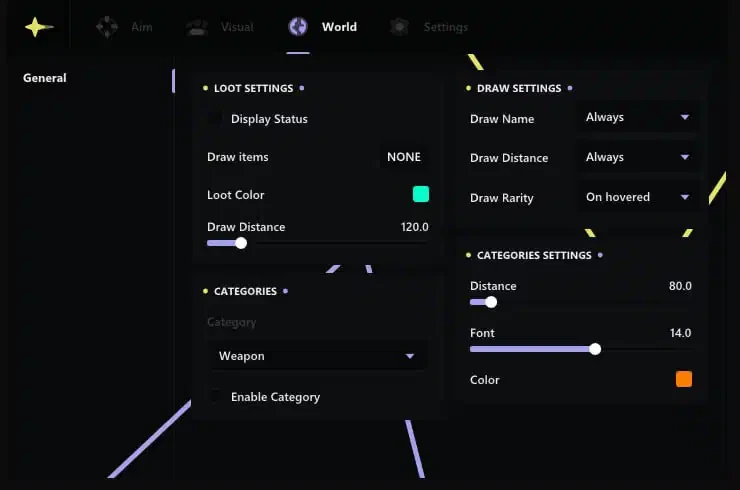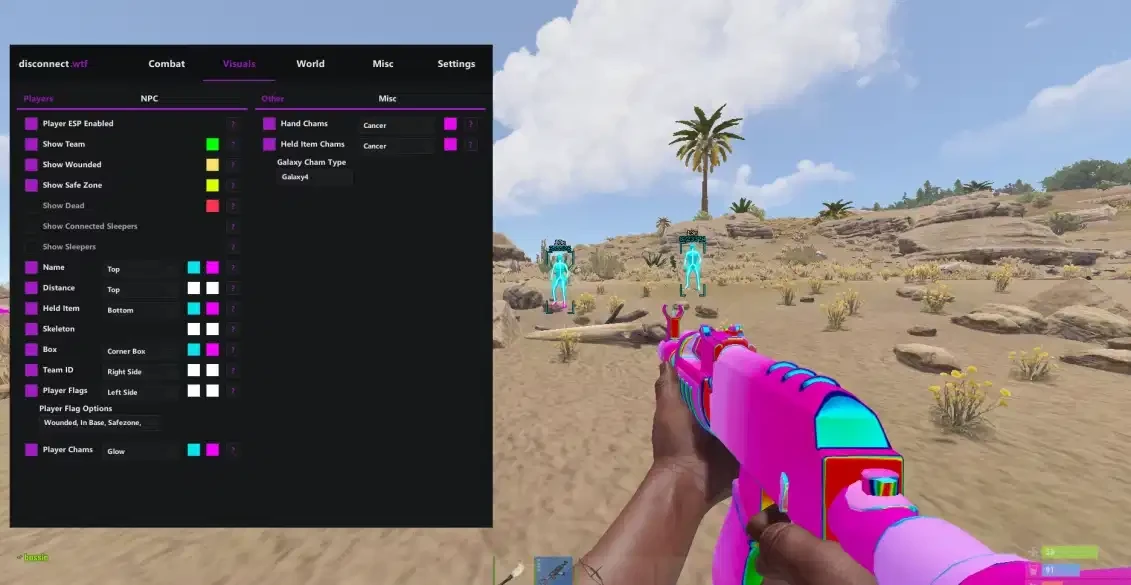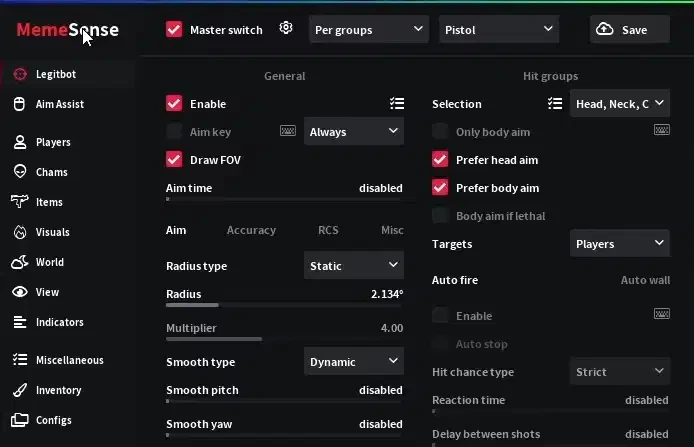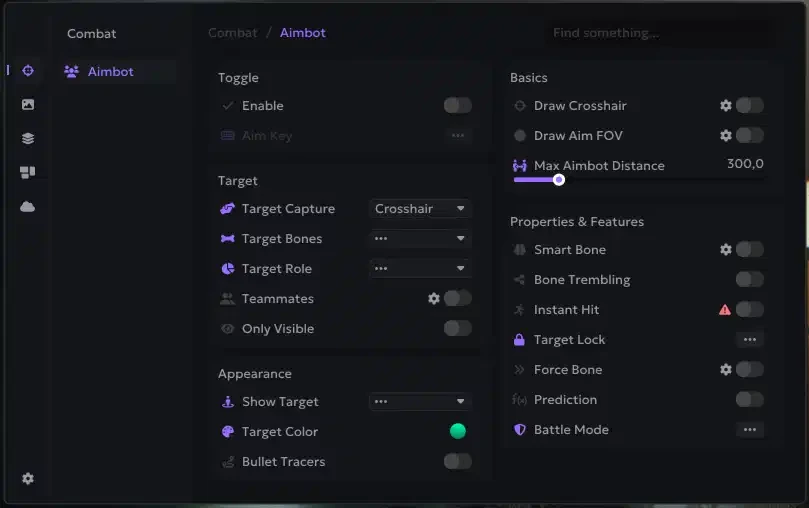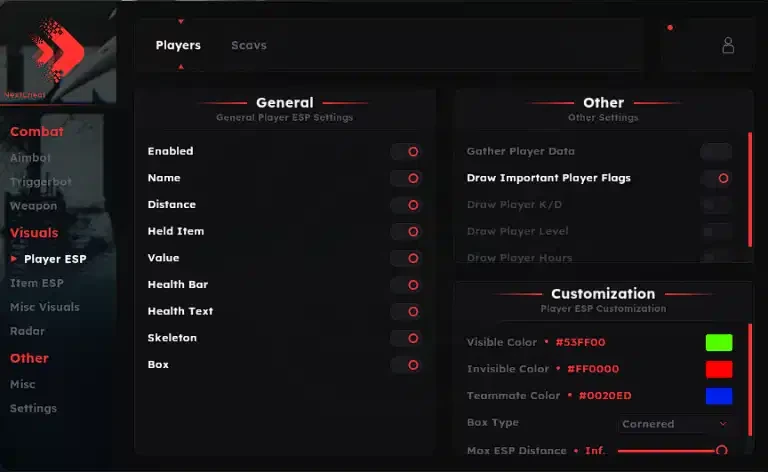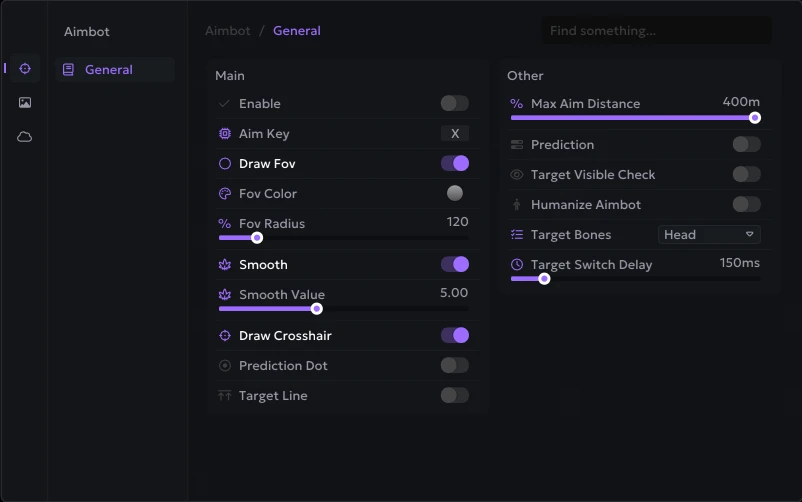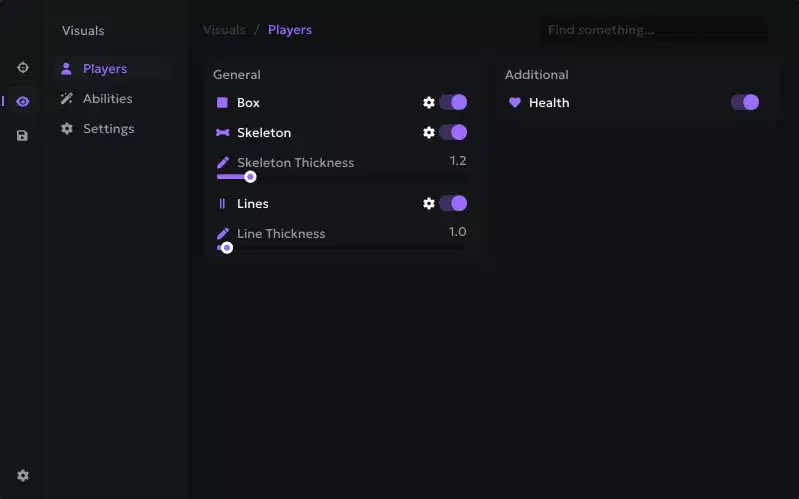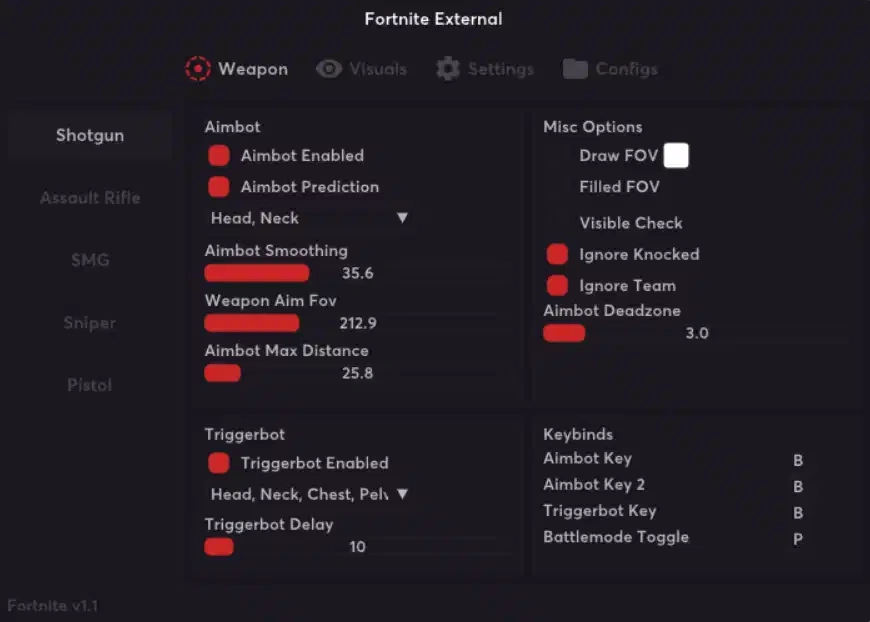
Welcome to the official setup guide for Fortnite Disconnect External. If you haven't purchased a license yet, you can do so here: Buy Now
Important Safety Note If you choose to use an additional external spoofer alongside this cheat, always run the cheat first and then the spoofer. Running the spoofer before the cheat will result in a ban.
Technical & Security Overview
- Internal Performance: Operates directly inside the game process for maximum FPS, smooth visual rendering, and zero delay.
- No Built-in Spoofer: This product does not include an integrated spoofer. If you have an active hardware ban (HWID), you will need a separate spoofer to play.
- Get a Spoofer: Buy External Spoofer
Required Files & Pre-Setup
1. Required Downloads Download and install these components before starting:
- Disable Windows Defender & Antivirus
- Loader
- Visual C++ Runtimes
- DirectX End-User Runtime
- Overlay Setup Guide (SteelSeries GG required)
2. System & BIOS Settings
- Disable Windows Defender and any third-party antivirus software.
- Uninstall persistent anti-cheats (FACEIT, Vanguard, etc.).
- Disable Secure Boot in BIOS.
- Ensure your BIOS Mode is set to UEFI (Search YouTube for "How to set BIOS mode to UEFI [Your Motherboard]" if needed).
3. GPU Overlay Setup
- SteelSeries GG is required for menu rendering. Ensure SteelSeries GG is running and configure the F7 key shortcut under Sonar settings before launching.
Loader Setup & Injection Process
- Download: Visit the loader installation page from your dashboard and download the loader.
- Launch: Run the loader as Administrator. (Important: Only run the loader once per session).
- Login: Log in with your existing account or register using your purchased key.
- Pre-Injection Check:
- Verify SteelSeries GG is running in the background.
- Press F7 to activate the overlay hooks.
- Ensure all security software and antiviruses remain disabled.
- Inject: Select Fortnite Disconnect Internal and press Inject.
- Launch Game: Start Fortnite once injection completes.
(Note: Always restart your PC after installation and before launching the game).
Troubleshooting & Common Fixes
Performance & Visual Issues
- ESP Lag / Low FPS: Limit your in-game Fortnite FPS to reduce CPU contention with the cheat. Lower overall graphics settings.
- ESP Shaking: Disable Anti-Aliasing and turn off NVIDIA DLSS or AMD FSR in your Fortnite graphics settings.
Connection & Overlay Fixes
- Connection / Server Errors: If the loader fails to connect to the server, install a VPN (such as TunnelBear or Cloudflare WARP) and turn it on.
- Overlay Missing: Ensure SteelSeries GG is active, the F7 shortcut is configured, and no other overlays (Discord, Xbox Game Bar) are conflicting.
Full Error Code Reference
Use Ctrl + F to locate your specific error code:
Bootstrap Failures
Invalid Processed Data/Failed to Contact Build Server: Servers are offline for maintenance, or your ISP is blocking the connection. Enable a VPN.Failed to Cleanup Internet Data/Failed to Query Process: Antivirus software or Windows Defender is restricting loader permissions. Disable or uninstall antivirus.
Initialization Failures
0x1 : 0x0/0x1 : 0x1: User process is restricted by antivirus/firewall settings. Run loader as Admin and disable Defender using DControl.
Overlay Failures
0x0 (Couldn't Create D3D Device): Missing DirectX runtimes or unsupported DirectX version. Reinstall DirectX End-User Runtime.0x3 (Window Handle Invalid/Closed): Reinstall DirectX runtimes and verify SteelSeries GG overlay is running.
Injection Failures
0x6 : 0x2: Disable Windows Defender and turn off User Account Control (UAC).0x7 : 0x0: Couldn't locate system files. Disable all antivirus software.0x8: Update your Windows 10/11 build to the latest version and disable antivirus.0x9 : 0x6: Failed to mount UEFI drive. Switch your system boot mode from Legacy to UEFI in your BIOS settings.0x12: Missing binaries. Download and install both Visual C++ Redistributable and DirectX Runtimes.0x14: Build server data corrupted or offline. Contact support.
Need more help? Check out our blog at aimcorecheats.com/blog or open a support ticket with your error codes and log files.