Setting Up Required Overlays
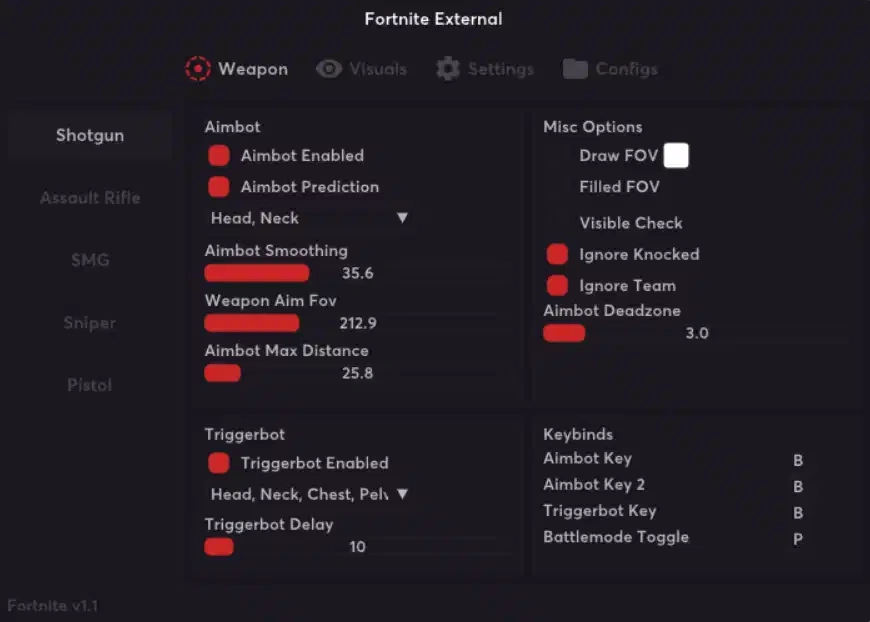
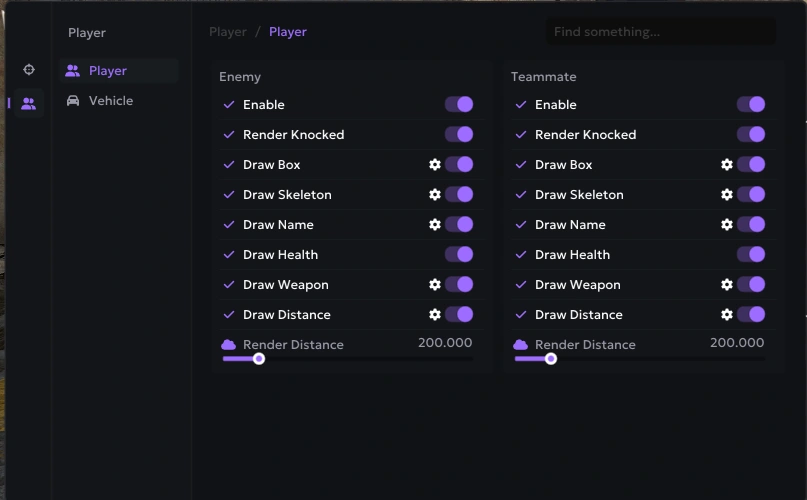
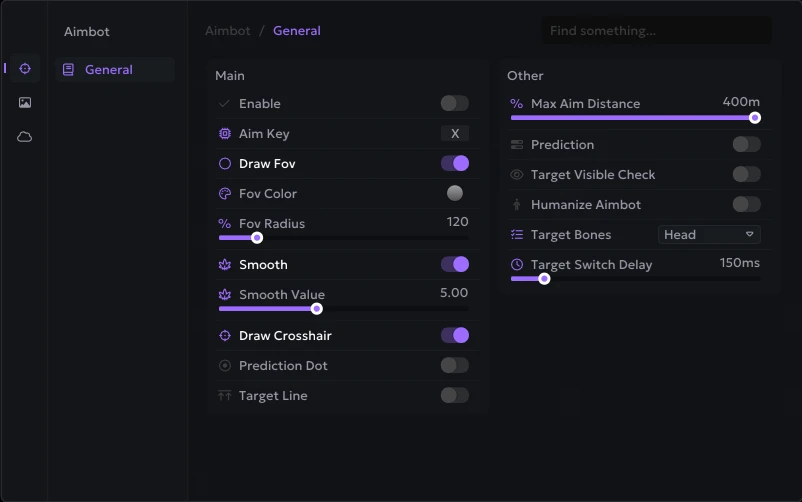
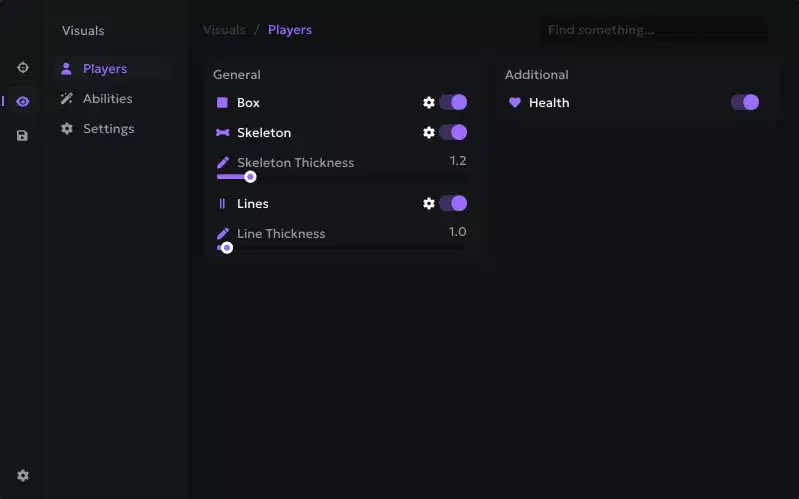
Welcome to the official overlay setup guide. Many of our external products require an overlay to properly display the menu and visuals in-game. Please follow the instructions below based on your graphics card.
Graphics Card Requirements
- NVIDIA Users: Can use either GeForce Experience or SteelSeries GG.
- AMD Users: Must use SteelSeries GG.
Quick Setup Overview
- Best Option for All Users: SteelSeries GG (Fully supports Fullscreen mode).
- Alternative for NVIDIA: GeForce Experience (Only supports Windowed or Borderless mode).
SteelSeries GG Setup (Recommended)
SteelSeries GG supports fullscreen mode and works flawlessly with both NVIDIA and AMD graphics cards.
Video Tutorial: Watch Setup Guide
1. Download and Install
- Download and install the SteelSeries GG
2. Enable Sonar
- Open SteelSeries GG and navigate to the GENERAL tab.
- Under General, enable the Sonar feature.
3. Set Shortcut
- Go to the SONAR tab and click on Shortcuts.
- Set Master - Volume Up to the F7 key.
- You must press F7 before every single injection.
4. Disable Unnecessary Notifications
- Turn OFF all notifications from Moments and Engine in the settings.
- Keep only the Sonar notifications enabled.
- Ensure that the SteelSeries Moments capture feature is completely disabled.
GeForce Experience Setup (NVIDIA Only)
Note: GeForce Experience does NOT support fullscreen mode. You must play your game in Windowed or Borderless mode, or switch to SteelSeries GG.
1. Download and Install
- Download and install NVIDIA GeForce Experience if it is not already on your system.
2. Enable Overlay
- Open GeForce Experience and click the gear icon to open Settings.
- Go to the General tab.
- Scroll down and enable IN-GAME OVERLAY.
Troubleshooting
Overlay Not Appearing
- If using SteelSeries, make sure you press F7 before injection.
- Verify the overlay is actually enabled in the software settings.
- Completely restart the overlay software and try again.
Overlay is Off-Center
- Unlock your Windows taskbar and drag it to the bottom of your screen.
- Press F7 once to reposition the overlay.
Sonar Not Working
- Double-check that Sonar is enabled in the General settings of SteelSeries GG.
- Verify your F7 shortcut is set correctly under Master - Volume Up.
- Disable any conflicting overlay software like Discord or Steam.
Fullscreen Issues
- If your game forces you out of fullscreen or the menu breaks, use SteelSeries GG instead of GeForce Experience.
- Alternatively, switch your in-game display settings to Windowed or Borderless mode.
Important Final Notes
- Always press your set shortcut (F7) before you start the injection process.
- Keep your mouse focus on the main monitor where you need the overlay to appear.
- Disable all other unnecessary overlay software, including Discord overlays, Steam overlays (unless specifically required by the cheat), and Xbox Game Bar.