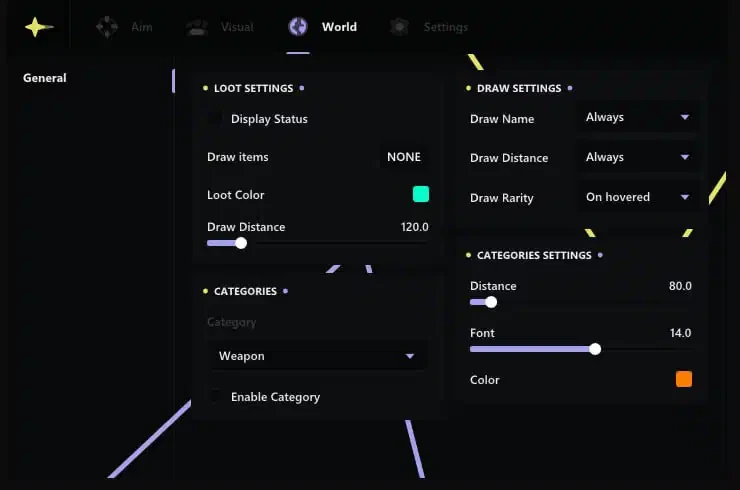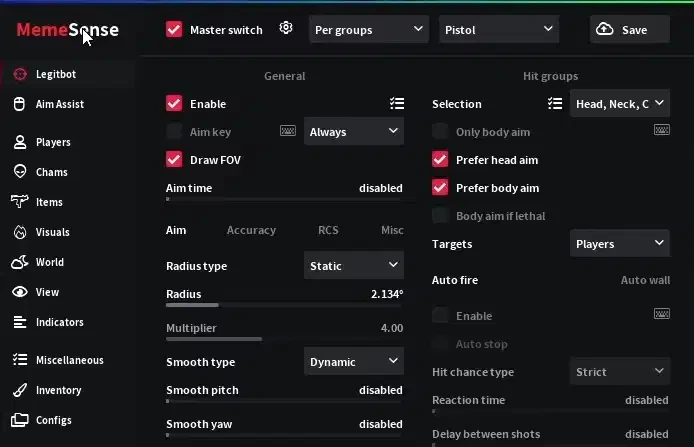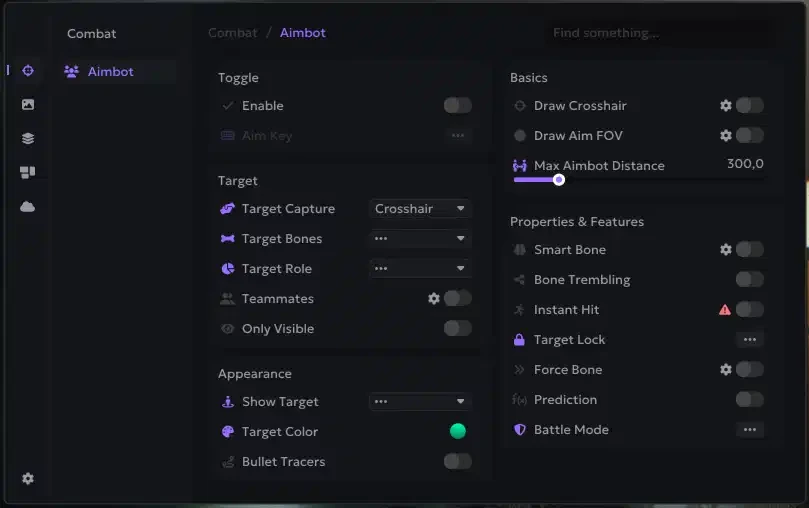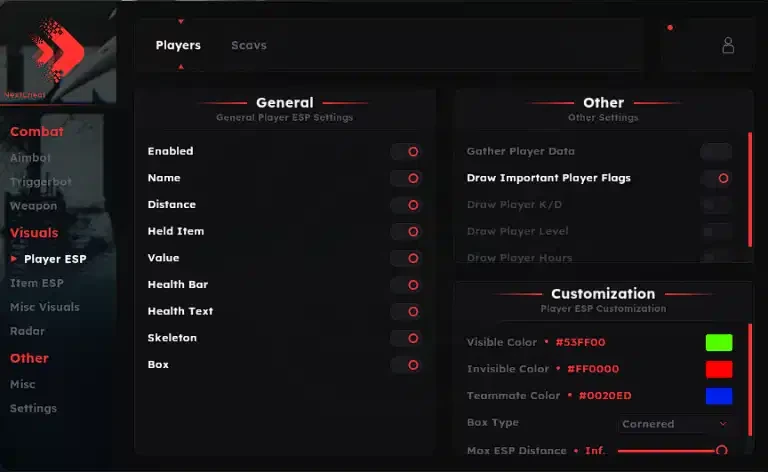
Welcome to the official guide for Rust Serenity External. If you haven't purchased the product yet, you can get it here: Buy Now
Important! If you are using an external spoofer, always run the cheat first and then the spoofer. If you run the spoofer first and then the cheat, you will get banned.
Security Information
- External: External products offer higher security against detection.
- Caution: This product does not have an integrated spoofer. If you already have a hardware ban (HWID), you will need an additional spoofer.
- You can find a compatible spoofer here: Buy External Spoofer
System Requirements
- CPU: AES Instruction Set support
- BIOS: SVM / VT-X enabled
- BIOS: Secure Boot disabled
- Feature: Hyper-V enabled
- RAM: 16GB minimum
- Compatibility: Intel & AMD
- OS: Windows 10 & 11 (Versions 1809 to 25H2)
Required Files & Preparation
Download all necessary components before starting:
- Disable Windows Defender and any antivirus software.
- Download the Loader
- Install the Visual C++ Runtimes.
- Install the DirectX End-User Runtimes.
Display Software Setup
Medal Overlay
Medal does not support fullscreen mode: Download Medal
- Users from Russia will need a VPN
- To use it, you need to download the overlay and register
Discord Overlay
Discord does not support fullscreen mode:
To use it:
- Go to Settings → Game Overlay → Enable the overlay
- Disable "Legacy Overlay"
- Disable "Hardware Acceleration" (Settings → Appearance → Advanced at the very bottom)
Pre-Launch Checklist
- Disable all antivirus programs.
- Launch the loader as administrator.
- Insert your key.
- Press inject and wait for the loader to close automatically.
- Start Rust now.
Troubleshooting Guide
Loader Stuck on Loading Screen
- Create a new folder on your Desktop.
- Move the loader into this folder and run it as administrator again.
Overlay Issues (GeForce / SteelSeries)
- GeForce Error: Disable the overlay briefly and turn it back on.
- SteelSeries Error: Press the SONAR bind before launch or disable "Allow Moments to capture while gaming" in SteelSeries settings.
Menu Flickering or Black Screens
- Open SteelSeries and go to Settings → Moments → Capture.
- Disable the option "Allow moments to capture while gaming".
Technical Error: Failed to Map Memory
- Disable all auto-start programs in Task Manager.
- Restart your PC.
- If the issue persists, use the Autoruns tool to remove unnecessary driver residues.
VMX is Not Supported
- Run CMD as Administrator.
- Enter:
bcdedit /set hypervisorlaunchtype off